
4inch HDMI LCD
| ||

Overview
Introduction
4inch Resistive Touch Screen LCD, HDMI interface, IPS Screen, Designed for Raspberry Pi.
Features
- 4inch IPS screen, with a hardware resolution of 480 × 800.
- Resistive touch control.
- Compatible with and can be directly connected to any version of Raspberry Pi. (If you are using a Raspberry Pi Zero / Zero 2 W, an additional HDMI cable is required.)
- Supports Raspberry Pi OS / Ubuntu / Kali and Retropie systems.
- Can be used as a computer monitor, without touch function (additional HDMI cable is required when connecting to a computer)
- Only for display, and no I/O resources used (touch function requires I/O)
- Supports backlight control for better power saving
Video
Working with Raspberry Pi
Hardware Connection
1. Connect the GPIO header.
Raspberry Pi leads out 40 GPIO pins, while the screen leads out 26 pins. When connecting, pay attention to the corresponding pins and Raspberry Pi pins.
2. Connect the HDMI connector to the HDMI port of the screen and the Pi.
3. Turn the Backlight on the back of the LCD to "ON".
Note: Raspberry Pi Zero / Zero 2 W needs an additional HDMI cable for connection.
The hardware connection is as shown below (Pi 4 and Pi 3B+):


Software Setting
This LCD can support Raspberry Pi OS / Ubuntu / Kali / Retropie systems.
Please download the latest version of the image on the Raspberry Pi official website.
- 1. Download the compressed file to the PC, and unzip it to get the .img file.
- 2. Connect the TF card to the PC, and use SDFormatter software to format the TF card.
- 3. Open the Win32DiskImager software, select the system image downloaded in step 1, and click 'Write' to flash the system image.
- 4. After the image flashing is completed, open the config.txt file in the root directory of the TF card, add the following code at the end of config.txt, then save and quit the TF card safely.
hdmi_group=2
hdmi_mode=87
hdmi_timings=480 0 40 10 80 800 0 13 3 32 0 0 0 60 0 32000000 3
hdmi_drive=1
hdmi_force_hotplug=1
dtoverlay=waveshare-ads7846,penirq=25,xmin=150,xmax=3900,ymin=100,ymax=3950,speed=50000
- 5. Download the waveshare-ads7846.dtbo file and copy to the overlays directory (/boot/overlays/)
- 6. Insert the TF card into the Raspberry Pi, power on the Raspberry Pi, and wait for more than 10 seconds to display normally.
Touch Calibration
Modify the parameters of the config.txt file:
① If the left edge of the X-axis cannot be touched, adjust the x_min parameter. For example, adjusting the default value of x_min from 200 to 100 extends the touch range to the left by 100.
② If the right edge of the X-axis cannot be touched, adjust the x_max parameter. For example, adjusting the default value of x_max from 3900 to 4000 extends the touch range to the right by 100.
③ If the top edge of the Y-axis cannot be touched, adjust the y_min parameter. For example, adjusting the default value of y_min from 200 to 100 extends the touch range to the top by 100.
④ If the bottom edge of the Y-axis cannot be touched, adjust the y_max parameter. For example, adjusting the default value of y_max from 3900 to 4000 extends the touch range to the bottom by 100.
For the value of the x_min, x_max, y_min, and y_max, you can refer to the evtest tool to define:
sudo apt-get install evtest
sudo evtest

Here, you can select the third one (The serial number displayed on different users' Raspberry Pi's may not be the same, depending on the user's actual serial number)
Put your finger on each of the four edges of the touch screen (x_min on the left, x_max on the right, y_min on the top, y_max on the bottom).
- Put your finger on "x_min":

- Put your finger on "x_max":

- Put your finger on "y_min":

- Put your finger on "y_max":

sudo nano /boot/firmware/config.txt
Add the following content:
dtoverlay=waveshare-ads7846,x_min=164,x_max=4010,y_min=154,y_max=3758
This is the more accurate touch range of the current touch device, and finally typing "sudo reboot" to reboot to take effect the current configuration.
Rotate
Display Rotation
Bookworm System
GUI Interface Rotation
- 1. Open the "Screen Configuration" application;

- 2. Go to "Screen" - > "HDMI-A-1" - > "Touchscreen" and check "Waveshare Waveshare"

- 3. Go to "Screen" -> "HDMI-A-1" -> "Orientation", check the direction you need to rotate, and finally click "Apply" to complete the screen and touch synchronous rotation.

Note: Only the Bookworm system supports the above screen and touch synchronization rotation method. Bullseye and earlier versions require separate settings for screen and touch rotation.
lite Version Display Rotation
Edit the startup command line file:
sudo nano /boot/firmware/cmdline.txt
Add the following parameters at the beginning of the cmdline.txt file (required to change to the actual screen resolution):
video=HDMI-A-1:400x1280M@60,rotate=90
Replaced with:
- rotate=90: rotate 90° clockwise
- rotate=180: rotate 180° clockwise
- rotate=270: rotate 90° counterclockwise
Note: HDMI shares rotation settings with other interfaces (such as DPI, DSI) and cannot be set separately. For the Lite version of the system, it can be rotated in this way
sudo nano .config/wayfire.ini
Add the following statement to the end of the file:
[output:HDMI-A-1]
mode = 800x480@60
transform = 270
The transform parameter can be selected as normal, 90, 180, or 270.
Bullseye and Kali Systems
First, check whether the KMS or FKMS driver is loaded on the system you are using.
Check method: In /boot/config.txt, check whether dtoverlay=vc4-kms-v3d or dtoverlay=vc4-fkms-v3d is enabled on the corresponding board.
If available, use the following command to display rotation:
sudo nano /etc/xdg/lxsession/LXDE-pi/autostart
#Enter the command corresponding to the display rotation angle at the end of the autostart file, and it will take effect after rebooting the system
#0: #0: rotate 0 degrees; 1: rotate 90 degrees; 2: rotate 180 degrees; 3: rotate 270 degrees
xrandr -o 1
If not, use the following command to display rotation:
sudo nano /boot/config.txt
#Enter the command corresponding to the display rotation angle at the end of the config.txt file, and it will take effect after rebooting the system
#0: rotate 0 degrees; 1: rotate 270 degrees; 2: rotate 180 degrees; 3: rotate 90 degrees
display_rotate=3
Ubuntu System
First, check whether the KMS or FKMS driver is loaded on the system you are using.
Check method: In /boot/firmware/config.txt, check whether dtoverlay=vc4-kms-v3d or dtoverlay=vc4-fkms-v3d is enabled on the corresponding board.
If available, use the following method to display rotation.
Note: For different versions of Ubuntu systems, the interface may vary. Generally, you can find the Displays application to rotate it.


Execute the command to rotate the Ubuntu login screen; if the Ubuntu login screen is not open, this step can be skipped:
#For 32-bit systems, run the following command, replacing your_user with the current username
sudo cp /home/<your_user>/.config/monitors.xml /var/lib/lightdm/.config
#For 64-bit systems, run the following command, replacing your_user with the current username
sudo cp /home/<your_user>/.config/monitors.xml /var/lib/gdm3/.config
sudo chown gdm:gdm /var/lib/gdm3/.config/monitors.xml
Execute the following command to rotate the command line display during the boot process:
sudo nano /boot/firmware/cmdline.txt
#Add the following code at the end to rotate the command line
#Rotate 0 degrees
fbcon=rotate:0 video=HDMI-A-1:800x480M@60,rotate=0
#Rotate 90 degrees
fbcon=rotate:3 video=HDMI-A-1:800x480M@60,rotate=90
#Rotate 180 degrees
fbcon=rotate:2 video=HDMI-A-1:800x480M@60,rotate=0
#Rotate 270 degrees
fbcon=rotate:1 video=HDMI-A-1:800x480M@60,rotate=270
If KMS or FKMS drivers are not loaded, the rotation is relatively simple. Use the following command to display rotation:
sudo nano /boot/firmware/config.txt
#Enter the command corresponding to the display rotation angle at the end of the config.txt file, and it will take effect after rebooting the system
#0: #0: rotate 0 degrees; 1: rotate 270 degrees; 2: rotate 180 degrees; 3: rotate 90 degrees
display_rotate=3
Touch Rotation
sudo nano /usr/share/X11/xorg.conf.d/99-calibration.conf
#Modify the relevant command lines in the 99-calibration.conf file, and the changes will take effect after a restart. The following are the default calibration parameters, if you need to use specific calibration parameters, just pay attention to the order change of the calibration parameter values.
#Touch rotate 0 degrees:
Option  "Calibration"   "208 3905 288 3910"
Option  "SwapAxes"      "0"
#Touch rotate 90 degrees:
Option  "Calibration"   "3905 208 288 3910"
Option  "SwapAxes"      "1"
#Touch rotate 180 degrees:
Option  "Calibration"   "3905 208 3910 288"
Option  "SwapAxes"      "0"
#Touch rotate 270 degrees:
Option  "Calibration"   "208 3905 3910 288"
Option  "SwapAxes"      "1"
EDID Timing Parameters
If the system of the main control board can automatically recognize the EDID for display, there is no need to set the relevant timing parameters additionally.
Otherwise, you can refer to the following EDID settings:
| Pixel Clock | H Adressable | H Blanking | V Adressable | V Blanking | H Front Porch | H Sync Width | V Front Porch | V Sync Width | H Image Size | V Image Size | H Border | V Border |
|---|---|---|---|---|---|---|---|---|---|---|---|---|
| 32.00 | 480 | 128 | 800 | 45 | 40 | 48 | 13 | 3 | 108 | 68 | 0 | 0 |
Pinout Definition
The pins labeled "NC" below mean that the LCD is not using these pins, and the user can use them for other applications.
| PIN NO. | SYMBOL | DESCRIPTION |
|---|---|---|
| 1 | 3.3V | Power positive (3.3V power input) |
| 2 | 5V | Power positive (5V power input) |
| 3 | NC | NC |
| 4 | 5V | Power positive (5V power input) |
| 5 | NC | NC |
| 6 | GND | Ground |
| 7 | NC | NC |
| 8 | NC | NC |
| 9 | GND | Ground |
| 10 | NC | NC |
| 11 | NC | NC |
| 12 | NC | NC |
| 13 | NC | NC |
| 14 | GND | Ground |
| 15 | NC | NC |
| 16 | NC | NC |
| 17 | 3.3V | Power positive (3.3V power input) |
| 18 | NC | NC |
| 19 | TP_SI | LCD display / SPI data input of touch panel |
| 20 | GND | Ground |
| 21 | TP_SCL | SPI data output of touch panel |
| 22 | TP_IRQ | Touch panel interrupt, detected low level when the touch panel is pressed |
| 23 | TP_SCK | SPI clock signal of touch panel |
| 24 | NC | NC |
| 25 | GND | Ground |
| 26 | TP_CS | Touch panel chip selection signal, the low level selects the touch panel |
Possible Issues
Touch jitter is so obvious, how to solve it?
De-jitter parameters can be set to solve the problem of touch jitter but at the cost of sacrificing a part of the sensitivity.
Since the ads7846.dtbo provided by Raspberry Pi by default has no de-jitter parameters, you can increase the de-jitter parameters by modifying and replacing ads7846.dtbo.
Specifically, the anti-shake function can be added in the following method:
1. Execute the following command:
wget https://files.waveshare.com/upload/2/29/Ads7846_waveshare.zip
unzip Ads7846_waveshare.zip
cd ads7846_waveshare
sudo cp ads7846_waveshare.dtbo /boot/overlays/
2. Execute the following command:
sudo nano /boot/config.txt
#Comment out the original command:
#dtoverlay=ads7846,cs=1,penirq=25,penirq_pull=2,speed=50000,keep_vref_on=0,swapxy=0,pmax=255,xohms=150,xmin=200,xmax=3900,ymin=200,ymax=3900
#Add the following command at the end of the config.txt file, it will take effect after rebooting the system
dtoverlay=ads7846_waveshare
Related reference documents: ads7846-overlay.dts and ads7846.txt
The installation of xserver-xorg-input-evdev and xinput-calibrator in Ubuntu system reports an error, so the touch cannot be used normally. How to solve it?
Note: The Ubuntu system may not be able to access the default source due to network problems in some regions, resulting in an installation error.
Solution 1, update the source:
1. Execute the command to view the current version:
lsb_release -c -s
For example, after execution, the system version may be: groovy
2. Execute the commands:
#Backup the original source
sudo mv /etc/apt/syntaxhighlights.list /etc/apt/syntaxhighlights.list.old
sudo nano /etc/apt/syntaxhighlights.list
Add the following code and save:
#Replace the following groovy with the version name obtained in step 1
deb http://old-releases.ubuntu.com/ubuntu/ groovy universe main
deb http://old-releases.ubuntu.com/ubuntu/ groovy-security main universe
deb http://old-releases.ubuntu.com/ubuntu/ groovy-updates main universe
3. Execute the command to update:
sudo apt-get update
4. After the update is complete, run #Touch Calibration again.
If the above source fails, the following methods can be used:
Solution 2, directly find the download address of the two applications, download and install directly:
For 32-bit systems, execute the following commands:
wget http://deb.debian.org/debian/pool/main/x/xserver-xorg-input-evdev/xserver-xorg-input-evdev_2.10.6-2_armhf.deb
sudo dpkg -i xserver-xorg-input-evdev_2.10.6-2_armhf.deb
wget wget http://mirrors.ustc.edu.cn/debian/pool/main/x/xinput-calibrator/xinput-calibrator_0.7.5+git20140201-1+b2_armhf.deb
sudo dpkg -i xinput-calibrator_0.7.5+git20140201-1+b2_armhf.deb
For 64-bit systems, execute the following commands:
wget http://deb.debian.org/debian/pool/main/x/xserver-xorg-input-evdev/xserver-xorg-input-evdev_2.10.6-2_arm64.deb
sudo dpkg -i  xserver-xorg-input-evdev_2.10.6-2_arm64.deb
wget http://mirrors.ustc.edu.cn/debian/pool/main/x/xinput-calibrator/xinput-calibrator_0.7.5+git20140201-1+b2_arm64.deb
sudo dpkg -i xinput-calibrator_0.7.5+git20140201-1+b2_arm64.deb
The installation of xserver-xorg-input-evdev and xinput-calibrator in Kali system reports an error, so the touch cannot be used normally. How to solve it?
Note: The Kali system may not be able to access the default source due to network problems in some regions, resulting in an installation error.
Solution 1, update the source:
1. Run sudo su to get admin privileges, the default password is kali.
2. Execute the commands:
wget -q -O - https://archive.kali.org/archive-key.asc | apt-key add
3. Modify the source and execute the command:
nano /etc/apt/syntaxhighlights.list
Comment out the original source and change it to:
deb http://mirrors.ustc.edu.cn/kali kali-rolling main contrib non-free
Save and exit
4. Execute the command to update:
apt-get update --fix-missing
5. After the update is complete, run #Touch Calibration again.
If the above source fails, the following methods can be used:
Solution 2, directly find the download address of the two applications, download and install directly:
For 32-bit systems, execute the following commands:
wget http://deb.debian.org/debian/pool/main/x/xserver-xorg-input-evdev/xserver-xorg-input-evdev_2.10.6-2_armhf.deb
sudo dpkg -i xserver-xorg-input-evdev_2.10.6-2_armhf.deb
wget wget http://mirrors.ustc.edu.cn/debian/pool/main/x/xinput-calibrator/xinput-calibrator_0.7.5+git20140201-1+b2_armhf.deb
sudo dpkg -i xinput-calibrator_0.7.5+git20140201-1+b2_armhf.deb
For 64-bit systems, execute the following commands:
wget http://deb.debian.org/debian/pool/main/x/xserver-xorg-input-evdev/xserver-xorg-input-evdev_2.10.6-2_arm64.deb
sudo dpkg -i  xserver-xorg-input-evdev_2.10.6-2_arm64.deb
wget http://mirrors.ustc.edu.cn/debian/pool/main/x/xinput-calibrator/xinput-calibrator_0.7.5+git20140201-1+b2_arm64.deb
sudo dpkg -i xinput-calibrator_0.7.5+git20140201-1+b2_arm64.deb
Resources
Related Resources
- 4inch HDMI LCD Datasheet
- 4inch HDMI LCD User Manual
- 4inch HDMI LCD CE certification
- 4inch HDMI LCD RoHS2.0 certification
- 4inch HDMI LCD 3D Drawing
- 4inch HDMI LCD 3D Preview
Software
FAQ
dusable_splash=1
{{{5}}}
{{{5}}}
sudo -E rpi-eeprom-config --edit
As shown in the figure below, change the 0 in the original DISABLE_HDMI to 1. If there is no such sentence, please add it directly, save the file, and then restart.

{{{5}}}
{{{5}}}

Execute the following command in the Raspberry Pi terminal:
gpio -g pwm 18 0
gpio -g mode 18 pwm (occupied pins are PWM pins)
gpio pwmc 20
Control brightness: gpio -g pwm 18 X (X takes values between 0 and 1024), 0 is the brightest, and 1024 is the darkest.
{{{5}}}
Screw size is M3.
{{{5}}}
Anti-Piracy
Since the first-generation Raspberry Pi released, Waveshare has been working on designing, developing, and producing various fantastic touch LCDs for the Pi. Unfortunately, there are quite a few pirated/knock-off products in the market. They're usually some poor copies of our early hardware revisions, and comes with none support service.
To avoid becoming a victim of pirated products, please pay attention to the following features when purchasing:
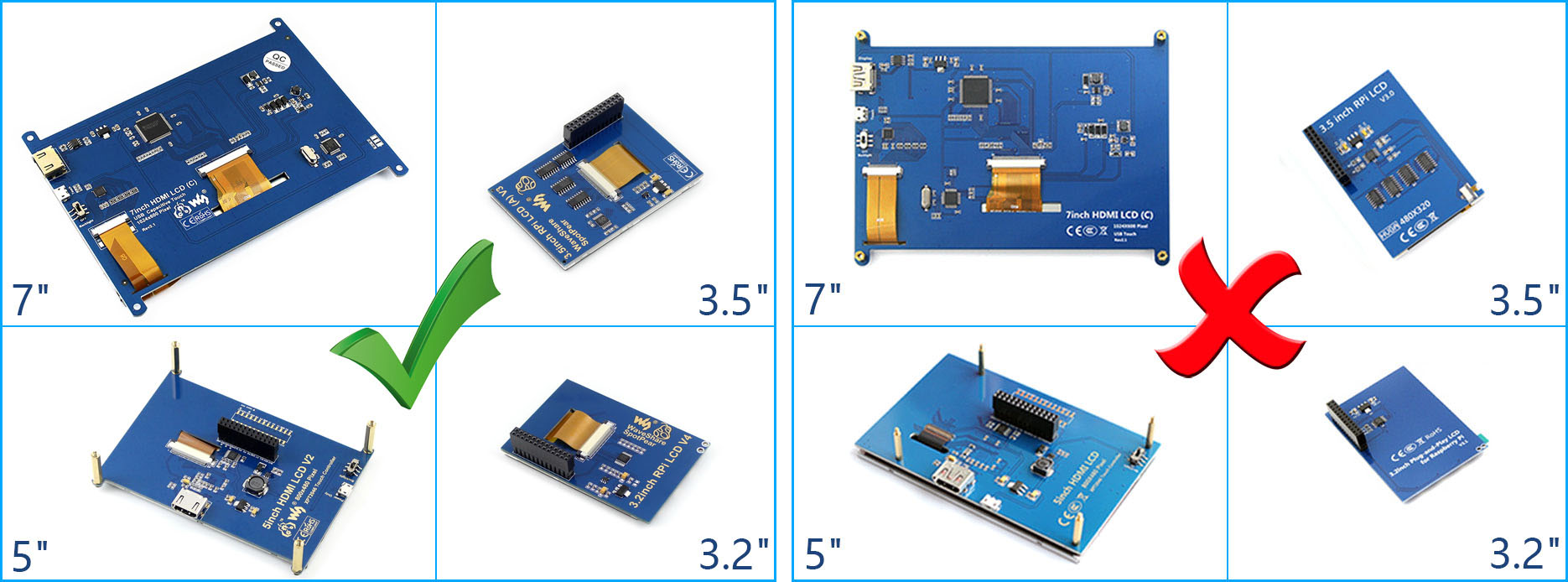
Beware of knock-offs
Please note that we've found some poor copies of this item in the market. They are usually made of inferior materials and shipped without any testing.
You might be wondering if the one you're watching or you've purchased in other non-official stores is original, feel free to contact us.
Support
Technical Support
If you need technical support or have any feedback/review, please click the Submit Now button to submit a ticket, Our support team will check and reply to you within 1 to 2 working days. Please be patient as we make every effort to help you to resolve the issue.
Working Time: 9 AM - 6 PM GMT+8 (Monday to Friday)