
RP2350-Relay-6CH
Overview
| ||
| ||


Introduction
RP2350-Relay-6CH and RP2350-Relay-6CH-W are industrial-grade 6-channel relay series products based on the RP2350B main controller, both equipped with peripheral interfaces such as RS485 and Pico, and featuring multiple protection circuits including power isolation and optocoupler isolation. Among them, the RP2350-Relay-6CH-W additionally supports WiFi and Bluetooth wireless communication functions. This series is designed with a focus on safety and stability, providing industrial-grade reliable protection.
Features
- RP2350B microcontroller chip officially designed by Raspberry Pi
- Unique dual-core and dual-architecture design, equipped with dual-core ARM Cortex-M33 processor and dual-core Hazard3 RISC-V processor, flexible clock running up to 150 MHz, supporting flexible switching between the two architectures
- Equipped with Raspberry Pi Radio Module 2 module, supporting Wi-Fi 4 wireless network and Bluetooth 5.2 (Wi-Fi module version only)
- Built-in 520KB of SRAM and 16MB of on-chip Flash
- Type-C port, easier to use
- High quality relay, contact rating: ≤10A 250V AC or ≤10A 30V DC
- Onboard isolated RS485 interface, for connecting to various RS485 Modbus industrial modules or sensors
- Onboard Pico compatible interfaces can be adapted to some Raspberry Pi Pico HAT, for expanding more functions such as RTC / CAN / RS232 / LoRa / sensor, etc.
- Onboard power supply screw terminal, supports 7~36V wide voltage input, suitable for industrial applications
- Onboard optocoupler isolation to prevent interference with control chip from external high-voltage circuit connected to the relay
- Onboard digital isolation to avoid external signal interference with the control chip
- Onboard integrated power isolation, providing stable isolation voltage, no extra power supply required for the isolated terminal
- Built-in buzzer, RGB colorful LED, power supply and RS485 TX/RX indicators for monitoring the operating status of the module
- Rail-mounted ABS protective enclosure, easy to install, safe to use
- USB1.1 host and slave device support
- Low-power sleep and dormant modes
- Drag-and-drop programming via USB mass storage
- 34 × multi-functional GPIO pins
- 2 × I2C, 2 × UART, 8 × 12-bit ADC and 24 × controllable PWM channels
- Accurate clock and timer on-chip
- Temperature sensor
- On-chip accelerated floating-point library
- 12 × Programmable I/O (PIO) state machines for custom peripheral support
Pinout Definition
.jpg)
Dimensions
.jpg)
Electrical and Relay Safety Instructions
- This product must be operated by professional electricians or qualified personnel. During use, ensure electrical safety, leakage protection, and proper insulation.
- Before installing, maintaining, or replacing the relay device, always turn off the power and unplug the device.
- Do not attempt to disassemble the relay device to avoid damage or the risk of electric shock.
- Properly install and place the relay device. Do not use it in humid, overheated, flammable, or explosive environments to prevent accidents caused by improper installation or use.
1. Load Matching
- Ensure the relay's rated voltage and current match the load. Do not exceed the rated capacity.
- For inductive loads (motors, coils, lamps, etc.), the starting current may be much higher than the rated current. Choose a relay with sufficient current margin.
2. Short Circuit and Overcurrent Protection
- Install a fuse or circuit breaker in the relay circuit to prevent damage due to short circuits or accidental overcurrent.
- Ensure the load circuit has no short circuits during wiring, and select protection components with appropriate current ratings if necessary.
3. Arc and Switching Protection
- Relay switching generates arcs, which can cause contact wear or welding.
- For inductive loads, it is recommended to use RC snubber circuits or varistors for arc suppression.
4. Installation Environment
- Do not use the relay in humid, high-temperature, flammable, explosive, or dusty environments.
- Install the relay securely to avoid vibrations or shocks that may cause misoperation or damage.
5. Power-Off Operation
- Always cut off power before maintenance, wiring, or replacing the relay to ensure personnel and device safety.
- Latching relays are only powered when changing state. Avoid strong vibrations or strong magnetic fields while the relay is unpowered.
6. Status Confirmation
- After powering on, confirm or reset the relay status as needed to prevent abnormal operation caused by transportation, installation, or external disturbances.
- Avoid power interruption during relay operation to prevent uncertain status or contact damage.
7. Regular Inspection
- Periodically inspect relay contacts, terminals, and insulation to ensure proper operation.
- If abnormal heating, odor, or burn marks are detected, immediately cut off power and replace the relay.
Pico Getting Started
Firmware Download
- MicroPython Firmware Download

- C_Blink Firmware Download

Basic Introduction
MicroPython Series
Install Thonny IDE
To facilitate the development of Pico/Pico2 boards with MicroPython on a computer, it is recommended to download the Thonny IDE
- Download Thonny IDE and follow the steps to install, the installation packages are all Windows versions, please refer to Thonny's official website for other versions
- After installation, configure the language and motherboard environment for the first use. Since we are using Pico/Pico2, pay attention to selecting the Raspberry Pi option for the motherboard environment

- Configure MicroPython environment and choose Pico/Pico2 port
- Connect Pico/Pico2 to your computer first, and in the lower right corner of Thonny left-click on the configuration environment option --> select Configure interpreter
- In the pop-up window, select MicroPython (Raspberry Pi Pico), and choose the corresponding port


Flash Firmware
- Click OK to return to the Thonny main interface, download the corresponding firmware library and flash it to the device, and then click the Stop button to display the current environment in the Shell window
- Note: For the Pico series board, you can directly use the firmware provided by MicroPython official. For the RP series board, please use the firmware provided below or in the program package.
- Steps to compile the latest firmware
- How to download the firmware library for Pico/Pico2 in windows: After holding down the BOOT button and connecting to the computer, release the BOOT button, a removable disk will appear on the computer, copy the firmware library into it
- How to download the firmware library for RP2040/RP2350 in windows: After connecting to the computer, press the BOOT key and the RESET key at the same time, release the RESET key first and then release the BOOT key, a removable disk will appear on the computer, copy the firmware library into it (you can also use the Pico/Pico2 method)

MicroPython Series Tutorials
【MicroPython】machine.Pin class function details
【MicroPython】machine.PWM class function details
【MicroPython】machine.ADC class function details
【MicroPython】machine.UART class function details
【MicroPython】machine.I2C class function details
【MicroPython】machine.SPI class function details
【MicroPython】rp2.StateMachine class function details
C/C++ Series
For C/C++, it is recommended to use Pico VSCode for development. This is a Microsoft Visual Studio Code extension designed to make it easier for you to create, develop, and debug projects for the Raspberry Pi Pico series development boards. No matter if you are a beginner or an experienced professional, this tool can assist you in developing Pico with confidence and ease. Here's how to install and use the extension.
- Official website tutorial: https://www.raspberrypi.com/news/pico-vscode-extension/
- This tutorial is suitable for Raspberry Pi Pico, Pico2 and the RP2040 and RP2350 series development boards developed by Waveshare
- The development environment defaults to Windows11. For other environments, please refer to the official tutorial for installation
Install VSCode
-
First, click to download pico-vscode package, unzip and open the package, double-click to install VSCode

Note: If vscode is installed, check if the version is v1.87.0 or later


Install Extension
-
Click Extensions and select Install from VSIX

-
Select the package with the vsix suffix and click Install

-
Then vscode will automatically install raspberry-pi-pico and its dependency extensions, you can click Refresh to check the installation progress

-
The text in the right lower corner shows that the installation is complete. Close VSCode


Configure Extension
-
Open directory C:\Users\username and copy the entire .pico-sdk to that directory

-
The copy is completed

-
Open vscode and configure the paths for the Raspberry Pi Pico extensions

The configuration is as follows:Cmake Path: ${HOME}/.pico-sdk/cmake/v3.28.6/bin/cmake.exe Git Path: ${HOME}/.pico-sdk/git/cmd/git.exe Ninja Path: ${HOME}/.pico-sdk/ninja/v1.12.1/ninja.exe Python3 Path: ${HOME}/.pico-sdk/python/3.12.1/python.exe


New Project
-
The configuration is complete, create a new project, enter the project name, select the path, and click Create to create the project
To test the official example, you can click on the Example next to the project name to select
-
The project is created successfully


Compile Project
-
Select the SDK version

-
Select Yes for advanced configuration

-
Choose the toolchain, 13.2.Rel1 is applicable for ARM cores, RISCV.13.3 is applicable for RISCV cores. You can select either based on your requirements

-
Select Default for CMake version (the path configured earlier)

-
Select Default for Ninja version

-
Select the development board

-
Click Compile to compile

-
The .uf2 format file is successfully compiled


Flash Firmware
Here are two methods for flashing firmware
-
Flash firmware using the pico-vscode plugin
Connect the development board to the computer, click Run to flash the firmware directly
-
Flash the firmware manually
1. Press and hold the Boot button
2. Connect the development board to the computer
3. Then the computer will recognize the development board as a USB device.
4. Copy the .uf2 file to the USB drive, and the device will automatically restart, indicating successful program flashing.

Import Project
-
Select the project directory and import the project

- The Cmake file of the imported project cannot have Chinese (including comments), otherwise the import may fail
-
To import your own project, you need to add a line of code to the Cmake file to switch between pico and pico2 normally, otherwise even if pico2 is selected, the compiled firmware will still be suitable for pico

set(PICO_BOARD pico CACHE STRING "Board type")


Update Extension
-
The extension version in the offline package is 0.15.2, and you can also choose to update to the latest version after the installation is complete


Arduino IDE Series
Install Arduino IDE
-
First, go to Arduino official website to download the installation package of the Arduino IDE.

-
Here, you can select Just Download.

-
Once the download is complete, click Install.

Notice: During the installation process, it will prompt you to install the driver, just click Install


Arduino IDE Interface
-
After the first installation, when you open the Arduino IDE, it will be in English. You can switch to other languages in File --> Preferences, or continue using the English interface.

-
In the Language field, select the language you want to switch to, and click OK.


Install Arduino-Pico Core in Arduino IDE
-
Open the Arduino IDE, click on the file in the top left corner, and select Preferences

-
Add the following link to the attached board manager URL, and then click OK
This link already includes board versions such as RP2040 and RP2350. Please visit arduino-pico for the latest version fileshttps://github.com/earlephilhower/arduino-pico/releases/download/4.5.2/package_rp2040_index.json

Note: If you already have an ESP32 board URL, you can use a comma to separate the URLs as follows:https://dl.espressif.com/dl/package_esp32_index.json,https://github.com/earlephilhower/arduino-pico/releases/download/4.5.2/package_rp2040_index.json
-
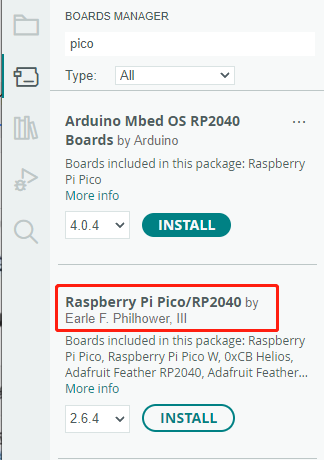
Click Tools > Development Board > Board Manager > Search pico, as my computer has already been installed, it shows that it is installed



Upload Demo at the First Time
-
Press and hold the BOOTSET button on the Pico board, connect the pico to the USB port of the computer via the Micro USB cable, and release the button after the computer recognizes a removable hard disk (RPI-RP2).

- Download the program and open D1-LED.ino under the arduino\PWM\D1-LED path
-
Click Tools --> Port, remember the existing COM, do not click this COM (the COM displayed is different on different computers, remember the COM on your own computer)

-
Connect the driver board to the computer using a USB cable. Then, go to Tools > Port. For the first connection, select uf2 Board. After uploading, when you connect again, an additional COM port will appear

-
Click Tools > Development Board > Raspberry Pi Pico > Corresponding models (Raspberry Pi Pico, Raspberry Pi Pico 2, etc.)


- After setting it up, click the right arrow to upload the program


- If issues arise during this period, and if you need to reinstall or update the Arduino IDE version, it is necessary to uninstall the Arduino IDE completely. After uninstalling the software, you need to manually delete all contents within the C:\Users\[name]\AppData\Local\Arduino15 folder (you need to show hidden files to see this folder). Then, proceed with a fresh installation.
Open Source Demos
MircoPython video demo (github)
MicroPython firmware/Blink demos (C)
Raspberry Pi official C/C++ demo (github)
Raspberry Pi official MicroPython demo (github)
Arduino official C/C++ demo (github)
Demo
C/C++ Demo
01_RS485
Demo description
- This example implements the control of six relay switches through RS485
Code analysis
- Relay_Control(): This function mainly executes the corresponding relay control operation and outputs the corresponding status prompt information according to the array index passed through the parameters
- Parameter analysis
uint8_t index: In themainfunction, the program will parse the received RS485 data and match it with the preset control command array. When a match is found, theRelay_Controlfunction is called, and the index position of the matching command in the array is passed viaindexparameter
- Logical flow
- Use the
if elsestatement to perform different operations based on the value ofindex:- In the case of
index < 6, that is, for theCH1~CH6commands, theDEV_Digital_Writefunction is used to switch the level status of the corresponding GPIO pin (such asRELAY1_PIN, etc.), and at the same time, the correspondingrelay_statusarray element is updated to record the change of the relay status, and the corresponding on or off prompt information is output according to the final state of the relay. Finally, in themainfunction, theBeepfunction is called to control the buzzer. - For the case of
index = 6, i.e., for theALL_ONcommand, all GPIO pins (corresponding to 6 channel relays) are set to high level (on state). Using thememsetfunction, all elements of therelay_statusarray are set to 1, indicating that all relays are turned on. A message indicating that all relays are turned on is then output. Finally, in themainfunction, theBeepfunction is called to control the buzzer. - For the case of
index = 7, i.e., for theALL_OFFcommand, all GPIO pins (corresponding to 6 channel relays) will be set to low level (off state). Using thememsetfunction, all elements of therelay_statusarray will be set to 0, indicating that all relays are off. A message indicating that all relays are off will be output. Finally, in themainfunction, theBeepfunction will be called to control the buzzer. - If the value of
indexdoes not match the above commands, the prompt message of receiving non-command data will be output
- In the case of
- Use the
- Parameter analysis
RS485 Control
- Jump to RS485 Control Tutorial
02_MQTT
Demo description
- This demo only supports the RP2350-Relay-6CH-W
- This demo achieves network communication through a WiFi connection and remotely controls 6 relays via the MQTT protocol
Precautions
- Devices need to be created in Waveshare Cloud
- The following key parameters need to be modified:
- WiFi connection parameters:
WIFI_SSID: WiFi network nameWIFI_PASSWORD: WiFi password
- MQTT core parameters:
MQTT_CLIENT_ID: Device IDMQTT_SERVER: Server addressMQTT_PUB_TOPIC: Release a topicMQTT_SUB_TOPIC: Subscribe to a topic
- WiFi connection parameters:
Code analysis
- Function description
Relay_Init(): Initialize relay control GPIOstart_client(): Create an MQTT client and connect to the serversub_unsub_topics(): Subscribe/unsubscribe from the topicmqtt_incoming_data_cb(): JSON message parsing and relay control core logic
- Logical flow
- Device initialization:
- Call
Relay_Init()to initialize GPIO - Call
cyw43_arch_wifi_connect_timeout_ms()to connect to WiFi
- Call
- MQTT connection:
- Call
mqtt_client_connect()to establish an MQTT connection - Call
sub_unsub_topics()to subscribe to a control topic
- Call
- Control logic:
- Receive JSON formatted messages (e.g., {data:{CH1:1}}) through the callback function
mqtt_incoming_data_cb() - Parse channel name (CH1~CH6 or ALL) and control value (0/1)
- Call
gpio_put()to control the corresponding relay - After successfully controlling the relay, call
mqtt_publish()to publish the update status to the MQTT server
- Receive JSON formatted messages (e.g., {data:{CH1:1}}) through the callback function
- Device initialization:
03_BLE
Demo description
- This demo only supports the RP2350-Relay-6CH-W
- This demo achieves wireless communication via Bluetooth Low Energy (BLE) to remotely control 6 relays
Precautions
- Device broadcast name: RP2350-Relay-6CH-W
- Use custom UUID service: 0000FF01-0000-1000-8000-00805F9B34FB
- Control command format: <channel name> <control value>
Code analysis
- Function description
Relay_Init(): Initialize relay control GPIOhci_power_control(): Turn on Bluetoothpacket_handler(): Bluetooth protocol stack event handling coreatt_write_callback(): Command parsing and execution core logic
- Logical flow
- Device initialization:
- Call
Relay_Init()to initialize relay GPIO - Call
hci_power_control()to start the BLE protocol stack
- Call
- Establish connection:
- Open the Bluetooth serial port tool, find the device broadcast name and UUID
- Enable notification feature after client connection
- Control logic:
- Receive text commands (e.g., CH1 1) in the callback function
att_write_callback() - Parse channel name (CH1~CH6 or ALL) and control value (0/1)
- Call
gpio_put()to perform GPIO control - Return the operation result to the client through
att_server_request_can_send_now_event()
- Receive text commands (e.g., CH1 1) in the callback function
- Device initialization:
Example of control commands
- Open channel 1:
CH1 1 - Close channel 2:
CH2 0 - Open all channels:
ALL 1 - Close all channels:
ALL 0
Example of error feedback
- Invalid command:
ERR: Cmd Invalid - Invalid channel:
ERR: CH 1-6 Only - Invalid value:
ERR: Need Value 0/1
MicroPython Demo
01_RS485
Demo description
- This example implements the control of six relay switches through RS485
Code analysis
- relay_control(): This function mainly executes the corresponding relay control operation and outputs the corresponding status prompt information according to the array index passed through the parameters
- Parameter analysis
index: In themainfunction, the program will parse the received RS485 data and match it with the preset control command array. When a match is found, therelay_controlfunction is called, and the index position of the matching command in the array is passed viaindexparameter
- Logical flow
- Use the
if elsestatement to perform different operations based on the value ofindex:- In the case of
index < 6, that is, for theCH1~CH6commands, therelays[index].valuefunction is used to switch the level status of the corresponding GPIO pin, and at the same time, the correspondingrelay_statusarray element is updated to record the change of the relay status, and the corresponding on or off prompt information is output according to the final state of the relay. Finally, thebeepfunction is called to control the buzzer. - For the case of
index = 6, i.e., for theALL_ONcommand, all GPIO pins (corresponding to 6 channel relays) are set to high level (on state), and all elements of therelay_statusarray are set to 1 through theforloop, indicating that all relays are turned on. A message indicating that all relays are turned on is then output. Finally, thebeepfunction is called to control the buzzer. - For the case of
index = 7, i.e., for theALL_OFFcommand, all GPIO pins (corresponding to 6 channel relays) will be set to low level (off state). Using theforloop, all elements of therelay_statusarray will be set to 0, indicating that all relays are off. A message indicating that all relays are off will be output. Finally, thebeepfunction will be called to control the buzzer. - If the value of
indexdoes not match the above commands, the prompt message of receiving non-command data will be output
- In the case of
- Use the
- Parameter analysis
RS485 Control
- Jump to RS485 Control Tutorial
02_MQTT
Demo description
- This demo only supports the RP2350-Relay-6CH-W
- This demo achieves network communication through a WiFi connection and remotely controls 6 relays via the MQTT protocol
Precautions
- Devices need to be created in Waveshare Cloud
- Modify the following parameters in config.py:
wifi_ssid: WiFi namewifi_password: WiFi passwordmqtt_client_id: Device ID
- Modify the following parameters in main.py:
MQTT_SUB_TOPIC: Subscribe to a topicMQTT_PUB_TOPIC: Release a topic
Code analysis
- Function description
initialize_wifi(): Connect to WiFimqtt_connect(): Connect to MQTTmqtt_subscribe(): Subscribe to a topicmqtt_publish(): Publish messagemqtt_recv_callback(): JSON message parsing and execution coreinit_relays(): Initialize all relays to the off stateset_relay(): Control a single relayset_all_relays(): Control all relays
- Logical flow
- Device initialization:
- Call
init_relays()to initialize all relays
- Call
- WiFi connection:
- Call
initialize_wifi()to connect to the specified network
- Call
- MQTT connection:
- Call
mqtt_connect()to connect to MQTT server - Call
client.set_callback()to set the callback function - Subscribe to the topic MQTT_SUB_TOPIC via
mqtt_subscribe()
- Call
- Control logic:
- Call
client.check_msg()in the main loop to wait for messages - Receive JSON formatted messages (e.g., {data:{CH1:1}}) through the callback function
mqtt_recv_callback() - Parse channel name (CH1~CH6 or ALL) and control value (0/1)
- Call
set_relay()andset_all_relays()to achieve relay control - After successfully controlling the relay, call
mqtt_publish()to publish the update status to the MQTT server
- Call
- Device initialization:
03_BLE
Demo description
- This demo only supports the RP2350-Relay-6CH-W
- This demo achieves wireless communication via Bluetooth Low Energy (BLE) to remotely control 6 relays
Precautions
- Device broadcast name: RP2350-Relay-6CH-W
- Use custom UUID service: 0000FF01-0000-1000-8000-00805F9B34FB
- Control command format: <channel name> <control value>
Code analysis
- Function description
init_relays(): Initialize relay control GPIObluetooth.BLE(): Initialize Bluetooth objectBLERelayControl(): Bluetooth implements relay control_process_command(): Command parsing and execution core logic
- Logical flow
- Device initialization:
- Call
init_relays()to initialize relay GPIO - Call
bluetooth.BLE()to initialize Bluetooth object - Call
BLERelayControl()to initialize Bluetooth controller
- Call
- Establish connection:
- Open the Bluetooth serial port tool, find the device broadcast name and UUID
- Enable notification feature after client connection
- Control logic:
- Determine Bluetooth events through the callback function
_irq() - Call the function
_process_command()to receive text commands (e.g., CH1 1) - Parse channel name (CH1~CH6 or ALL) and control value (0/1)
- Call
_set_relay()and_set_all_relays()to achieve relay control - Return the operation result to the client through
_send_response()
- Determine Bluetooth events through the callback function
- Device initialization:
Example of control commands
- Open channel 1:
CH1 1 - Close channel 2:
CH2 0 - Open all channels:
ALL 1 - Close all channels:
ALL 0
Example of error feedback
- Invalid command:
ERR: Cmd Invalid - Invalid channel:
ERR: CH 1-6 Only - Invalid value:
ERR: Need Value 0/1
External Expansions
RS485 Extended Relay Channels
- Use Modbus RTU Relay to extend 6-ch relay
- Connect Modbus RTU Relay to the RS485 port of RP2350-Relay-6CH
- The demo will turn on CH1~CH6 of Modbus-RTU-Relay one by one, and then turn them off one by one
Extend Timer Switch Function with Pico Port
- Use Pico-RTC-DS3231 to extend timer switch function
- Connect the Pico-RTC-DS3231 to the Pico port of RP2350-Relay-6CH
- The demo will toggle all relay states every 5s
Extend CAN Port with Pico Port
- Use Pico-CAN-B to extend CAN communication port
- Connect Pico-CAN-B to the Pico port of RP2350-Relay-6CH
- Power on after connecting Pico-CAN-B to USB-CAN-A
- Data reception: Use USB-CAN-A_TOOL for debugging

- Data transmission: Use the serial debugging assistant to view the printed data


Expand Environmental Monitoring Function
- Use Pico-Environment-Sensor to extend environmental monitoring function
- Connect Pico-Environment-Sensor to the Pico port of RP2350-Relay-6CH
- The example will loop to monitor the environment and output the results
Extend RS485 Port with Pico Port
- Please note, when using Pico-2CH-RS485 to expand the RS485 port, only channel 0 is supported, and channel 1 cannot be used
- Connect Pico-2CH-RS485 to the Pico port of RP2350-Relay-6CH
- Connect the channel 0 of Pico-2CH-RS485 to the Pico port of RP2350-Relay-6CH
- The demo will perform data transmission and reception loopback testing to verify the data transmission and reception function of the on-board RS485 interface and the extended RS485 interface
Resources
Supporting Resources
Demo
- Onboard RGB LED Test Demo
- RP2350-Relay-6CH Demo
- RP2350-Relay-6CH-W Demo
- RP2350-Relay-6CH External Expansion Demo
Schematic Diagram
Official Resources
Raspberry Pi Official Documents
- Get Started with MicroPython on Raspberry Pi Pico
- Raspberry Pi related books download
- Pico2 Schematic diagram
- Pico2 Pinout definition
- Pico2 Getting Started
- Pico2 C SDK User Manual
- Pico2 Python SDK User Manual
- Pico2 Datasheet
- RP2350 Datasheet
- RP2350 Hardware Design Reference Manual
Raspberry Pi Open Source Demos
Development Software
- Thonny Python IDE (Windows version V3.3.3)
- Pico environment building related software
- pico-vscode package
- SSCOM
- USB-CAN-A_TOOL
FAQ
Please move the jumper cap to 120R and try again. Some RS485 devices require a 120R resistor to be connected in series
Support
Technical Support
If you need technical support or have any feedback/review, please click the Submit Now button to submit a ticket, Our support team will check and reply to you within 1 to 2 working days. Please be patient as we make every effort to help you to resolve the issue.
Working Time: 9 AM - 6 PM GMT+8 (Monday to Friday)